

End-to-end · AI image and video tools
upsampler: AI Image & Video Creation
Five Tools. One Workflow.
From first prompt to final export without switching creative directions.


01 · Image Generation
Generate Images with the World’s Best AI Models
Create new images from written ideas and reference images. Explore a wide variety of visual styles, from photorealistic portraits to expressive illustration.
Explore a range of image approaches


02 · Image Upscaling
Upscale and Enhance Images with AI
Increase image resolution and bring out fine detail. Creative approaches can reinterpret textures, while faithful enhancement aims to retain the character of the original image.
See the difference side by side
03 · Image Editing
Edit Images at Full Resolution
Describe a change, focus on a specific area, or imagine what belongs beyond the edge of a frame. Keep the original composition in view while exploring a new result.
From small changes to new scenes


04 · Video Generation
AI Video Generation Made Simple
Start with a written scene or an existing image and explore how the idea might move. Think through the subject, camera angle, lighting, and pace of each shot.
Plan a scene, then bring it to life
05 · Video Upscaling
Upscale Videos to Crisp 4K
Give older or softer footage a closer look. Video enhancement focuses on clearer edges, visible textures, and a consistent appearance from frame to frame.
Explore clearer moving images


Made for Working Creators
Ideas and perspectives from people making visual work.
“A clear creative direction makes the next step feel much easier.”
“The details in a portrait can change the feeling of an entire image.”
“Trying another version often reveals the idea I wanted all along.”
“A stronger frame gives a moving story more room to breathe.”
Images
Visual ideas
Video
Moving scenes
Detail
Closer looks
Edit
New directions
Upscale Realistic Human Portraits
Explore how sharper skin texture, expressive eyes, and subtle facial details can change a portrait. For personal photos, preserving a subject’s identity matters as much as adding clarity.
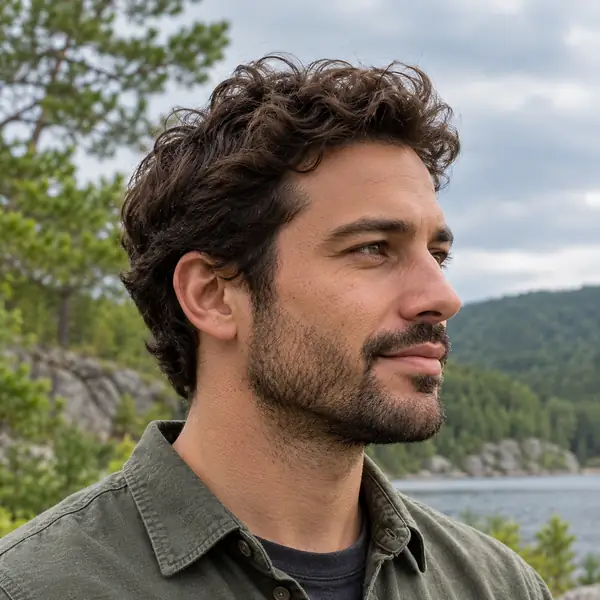
 BeforeAfter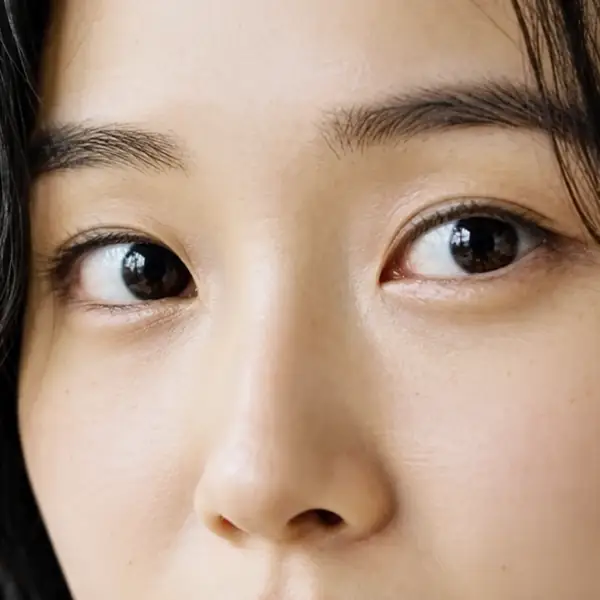
 BeforeAfter
Elevate Architectural Imagery
Bring interiors, exterior concepts, and architectural renders into focus. Look for the small differences in materials, stained glass, lighting, and the lines that define a space.
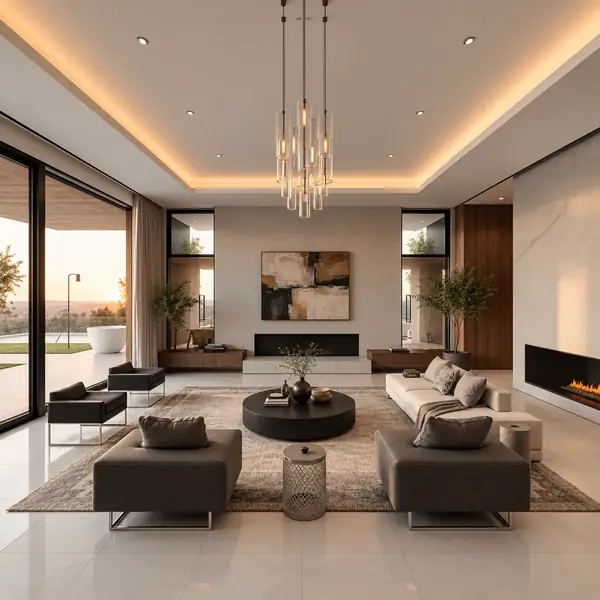
 BeforeAfter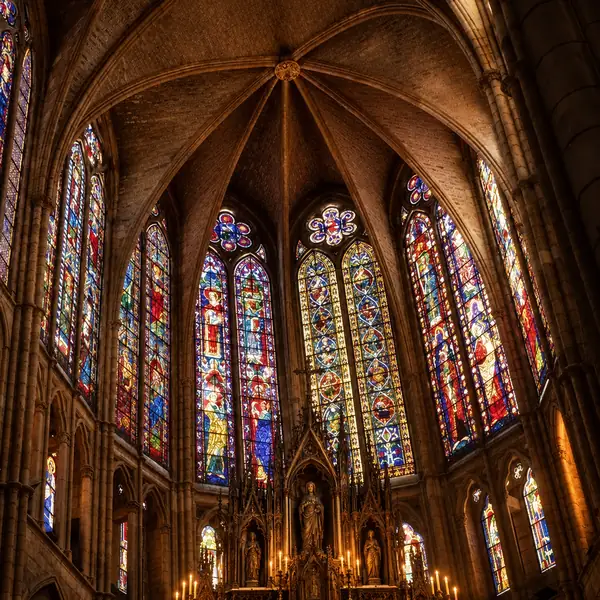
 BeforeAfter
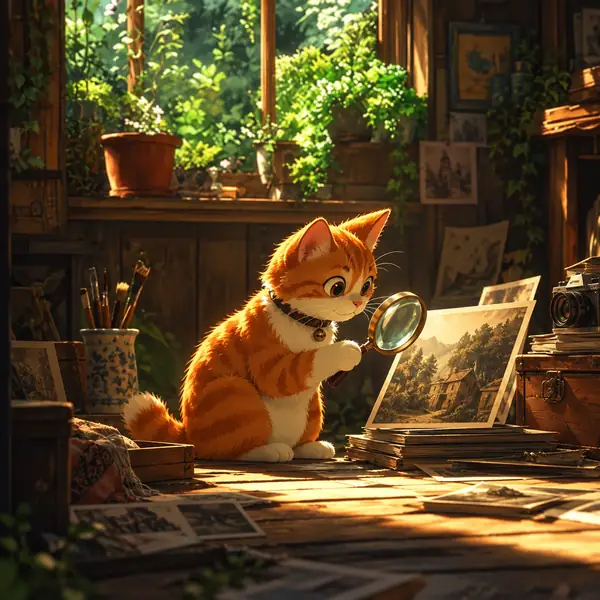
Improve Anime Scenes and Digital Illustrations
Explore richer colour, more defined lines, and finer environmental detail in digital artwork while keeping the composition that made the original scene work.
 BeforeAfter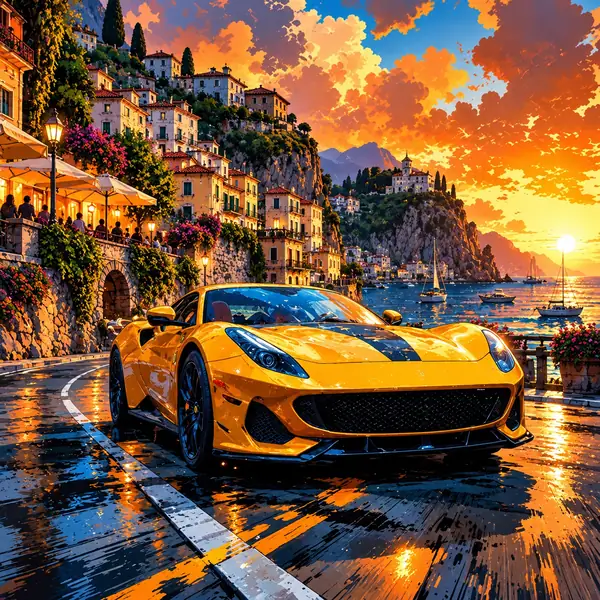
 BeforeAfter
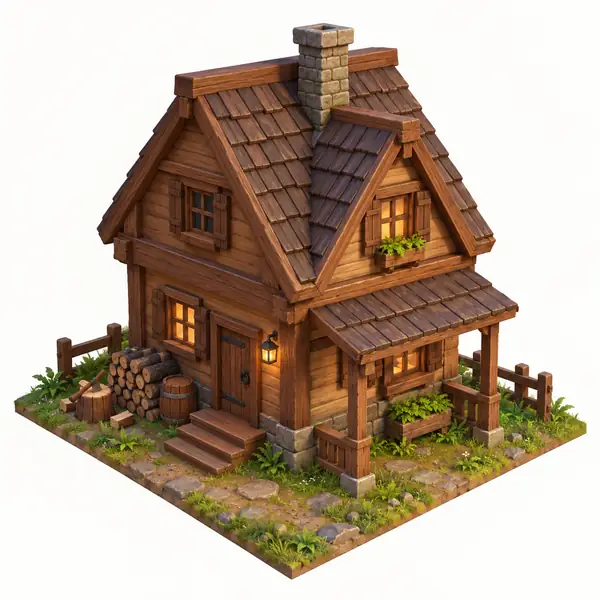
Upscale Game Assets & Graphics
See how an asset’s shapes, surface textures, and small design choices read at a larger size. Compare a storybook house and a character render below.
 BeforeAfter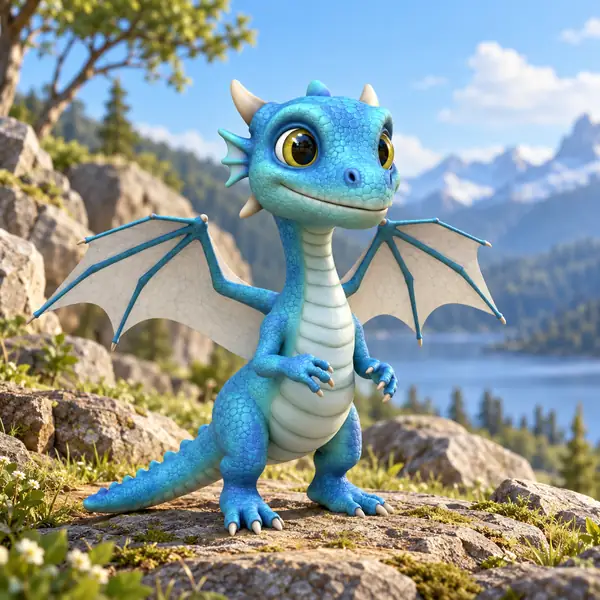
 BeforeAfter
Upscale Images Containing Text
When an image contains lettering or symbols, legibility matters. Compare intricate marks and printed type closely to judge whether their original forms remain intact.
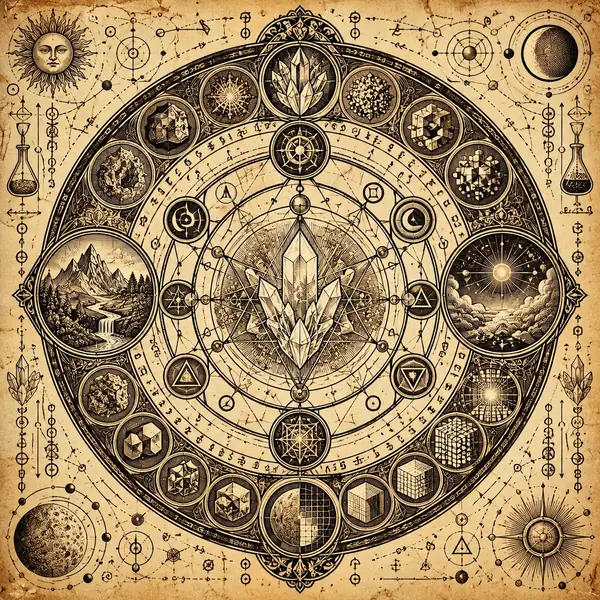
 BeforeAfter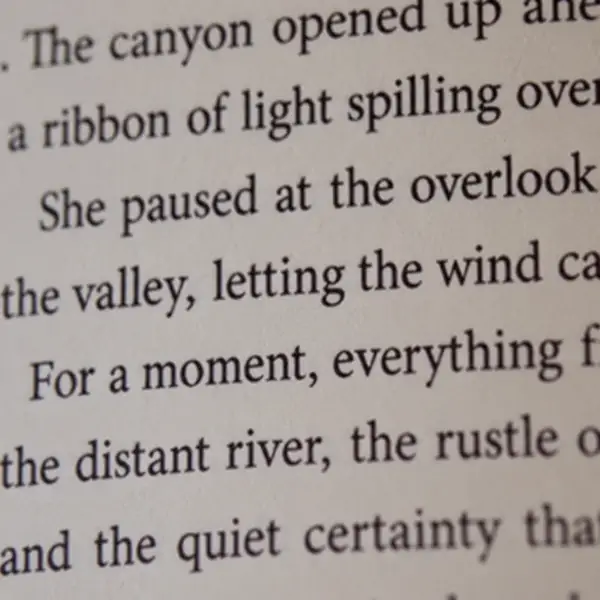
 BeforeAfter
Ready to create?
Create and Enhance Images and Videos
Move from a first idea to a more considered visual. Explore image and video creation, look closely at enhancement examples, and choose the direction that fits your project.
Start creatingFrequently Asked Questions
What can I do with upsampler?
Explore image generation, editing, and upscaling alongside ideas for video creation and enhancement. The examples on this page show the kinds of visual work these workflows can support.
Can I explore the tools before starting a project?
Yes. Browse the examples and comparisons here first. Selecting a creation action takes you to the destination site, where its current access terms are shown.
How does access to the creation site work?
Creation takes place on the destination site rather than on this page. Check that site for its current requirements and terms before you begin.
Can I stop and come back to my idea later?
You can return to this page to browse examples again. Whether a project is saved after you leave depends on the destination site.
What if a result is not what I imagined?
Try describing the subject, setting, framing, lighting, and desired changes more precisely. Review the destination site for its available editing options and support.
Can I use the results commercially?
Usage rights depend on the destination site and the tool used. Read its current terms before using any result in commercial work.
How much control do I have over quality and style?
A detailed prompt gives your idea more direction. Specific controls and output options are set by the destination site and may vary by workflow.
What can I upload?
If you choose “Upload an image,” you will continue to the destination site. Its upload screen provides the current supported formats and file limits.
Is there an API?
For developer access and documentation, check the destination site for its current integrations.